 Sellka
Stock
Your stock goes down by itself every time you sell. These are the few things you do by hand, so the figure on your phone stays the figure on your shelf.
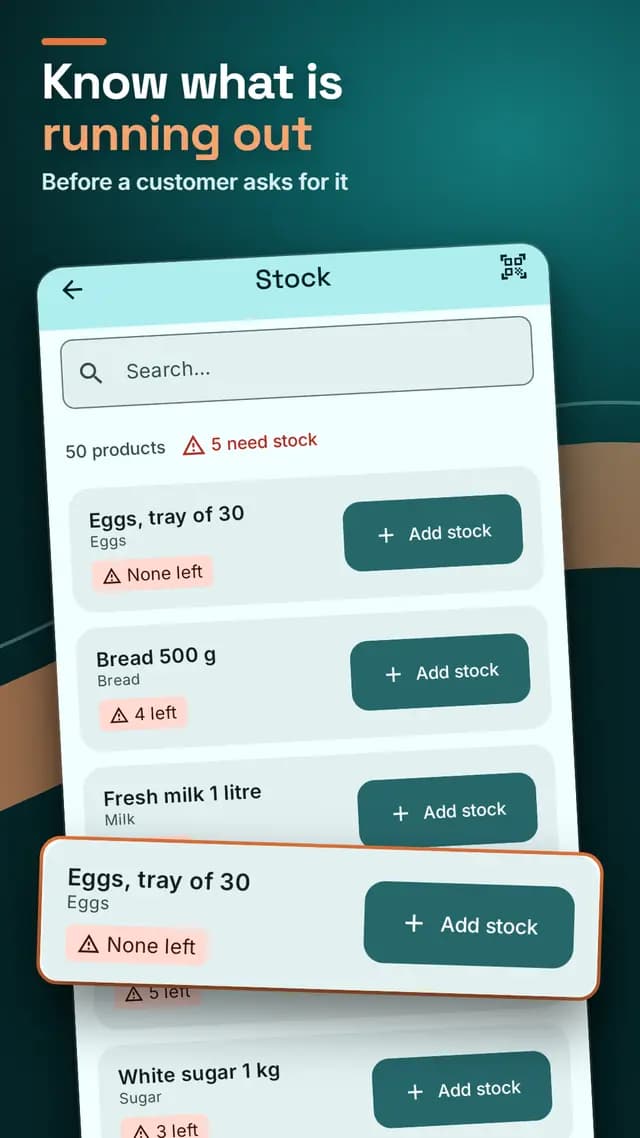
Adding stock that arrived
When goods arrive, open Stock and tap Add stock on the product. Enter the quantity that came in. You can also add who brought it, to keep track of what you owe.
Only add stock that really arrived, so the figure matches your shelf. To lower a stock figure, open the product and change it there.
Opening cartons
If a product is set to open into a smaller one, Stock offers to open it. Enter how many you opened. Sellka removes them and adds the smaller units.
No money changes. Only do it when you really open them. If you run out in the middle of a sale, the sale screen offers the same.
Low stock warnings
On a product, under More details, enter a low stock level, or leave it empty for no warning. When stock drops below it, Sellka warns you and marks Stock at the top of Home. If a product runs out with no level set, the Stock screen offers Warn me before it runs out.
Sellka can only warn you if notifications are on. Check in Settings, under Notifications. The warning clears when you add stock. Do not add stock just to clear it.
Goods stolen, spoiled or broken
Open the menu, tap Money in and out, then Add an entry, and choose Stolen, spoiled or broken. Enter what the goods cost you, not their selling price.
This does not change your stock. To fix stock, open the product and change the quantity.
Counting your shelf
Once a month, count what is really there and compare it with Stock. How to do stock taking in a shop.
Questions

© 2026 The NextTechTitan Team. Google Play and the Google Play logo are trademarks of Google LLC.