 Sellka
Setting up your shop
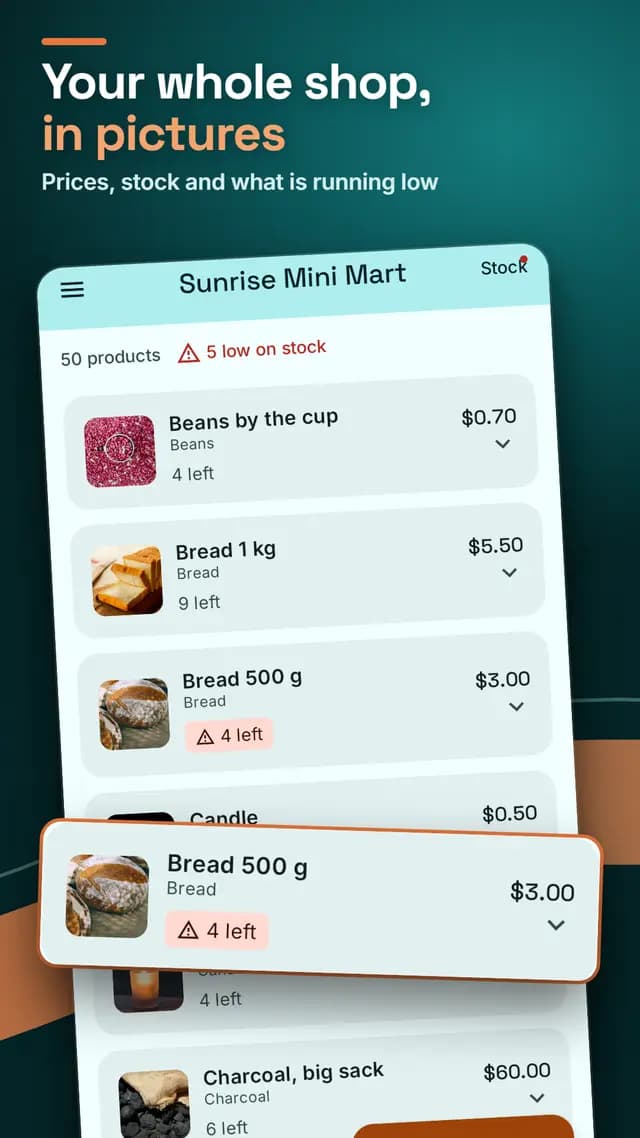
Add what you sell, then record each sale. That is all the daily work. Sellka then shows what you sold, what it cost, what you kept, who owes you and what is running low, and it all works on your phone with no internet.
What you need before you start
An Android phone running Android 8.0 or newer, and Sellka from Google Play. No account, no sign-in and no internet are needed to start. The first time, Sellka asks your shop's name and the money you sell in, and you can skip the second.
Add what you sell, by hand
Tap Add products on Home, then Add one product. Enter the name you use at the counter, the price, the cost to you, and how many you have. This works with no internet.
Only the cost can be left empty, but without it Sellka cannot show what you earn. Start with what you sell most, and add the rest as you go.
Watch the camera fill in the names
Add what you sell, with the camera
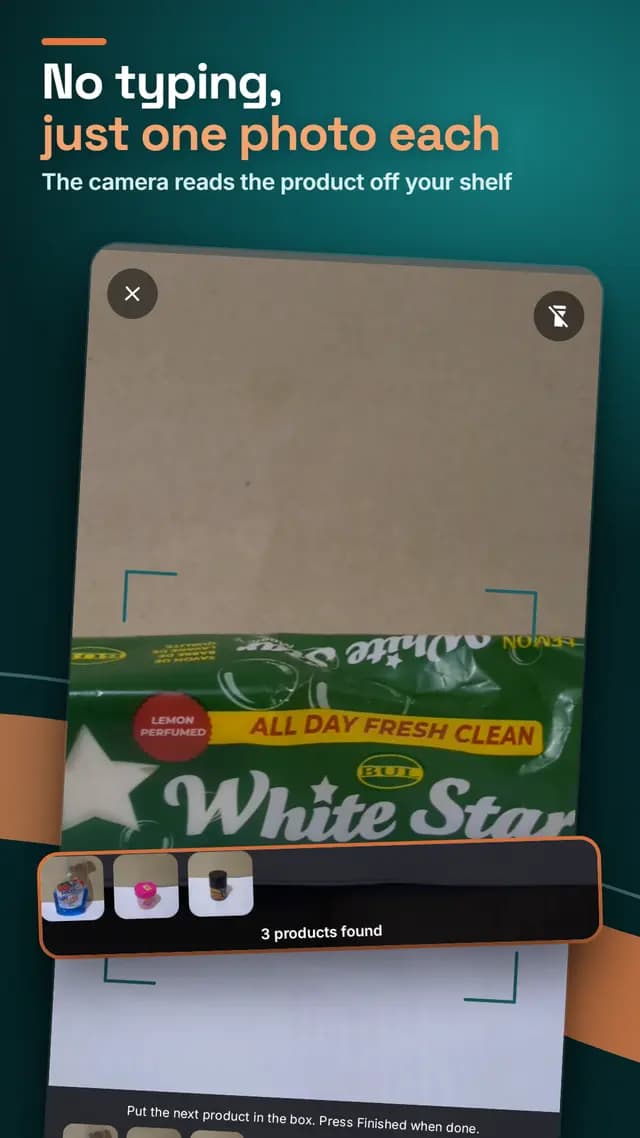
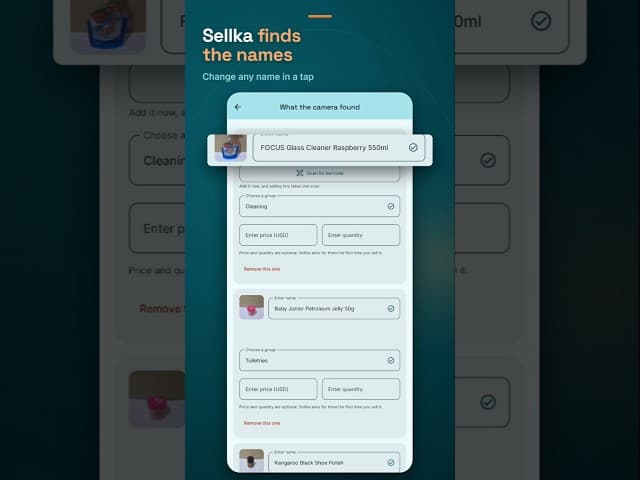
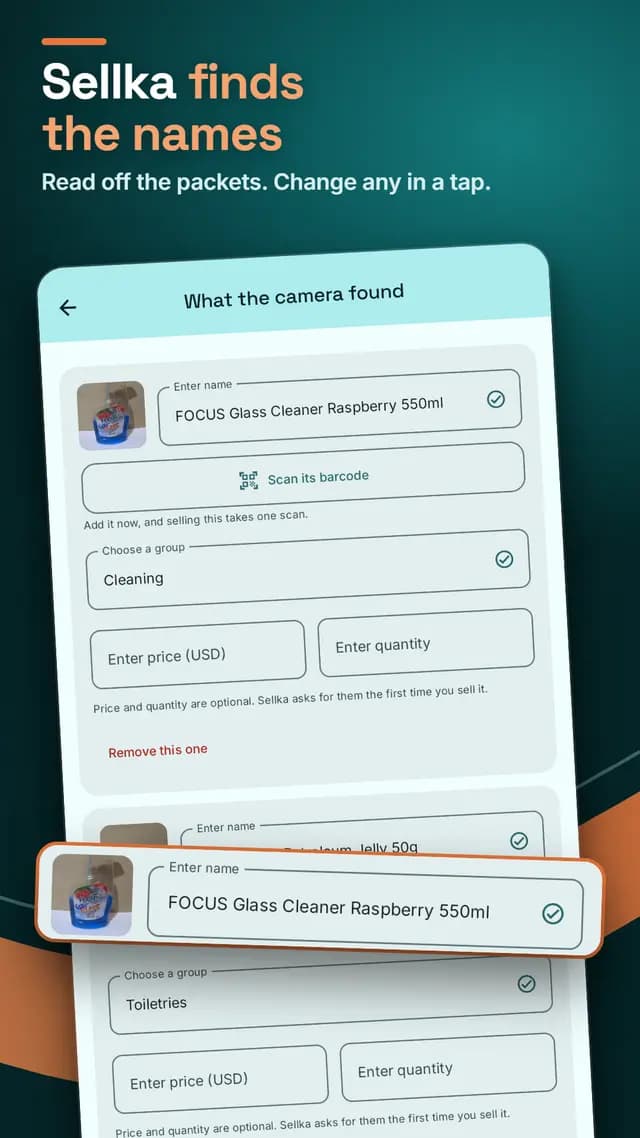
Tap Add products, then Add several at once. Fill the box with one product and tap Take this one, then the next. When you tap Finished, Sellka shows everything it found, with the names read off the packets. Change any name or group with a tap, scan each barcode, enter the price and how many, and save them all at once. Naming a product from a photo needs a connection. More about the camera.
Product groups
Put similar products in a group, like Drinks or Soap. It makes a long list easier to browse, and reports can total a group. Groups are optional and change no figure.
Cartons and smaller units
If you sell both cartons and bottles, add each as its own product, in the same group. On the carton's product screen, under Opens into smaller units, choose the bottle and enter how many. When you open cartons in the shop, tell Sellka on the Stock screen. It removes the cartons from stock and adds the bottles.
Questions

© 2026 The NextTechTitan Team. Google Play and the Google Play logo are trademarks of Google LLC.