 Sellka
Selling
Everything about taking a customer's money in Sellka, in the order you meet it at the counter.
Record a sale
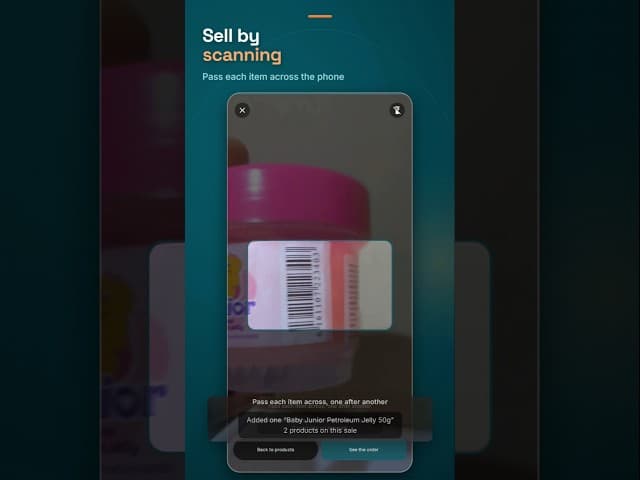
Tap Record a sale. Find each product and set the quantity. Search by name, price or barcode, or scan a barcode with the phone. Typing a price such as 4500 shows what sells for it, and 1000-3000 shows everything priced between the two.
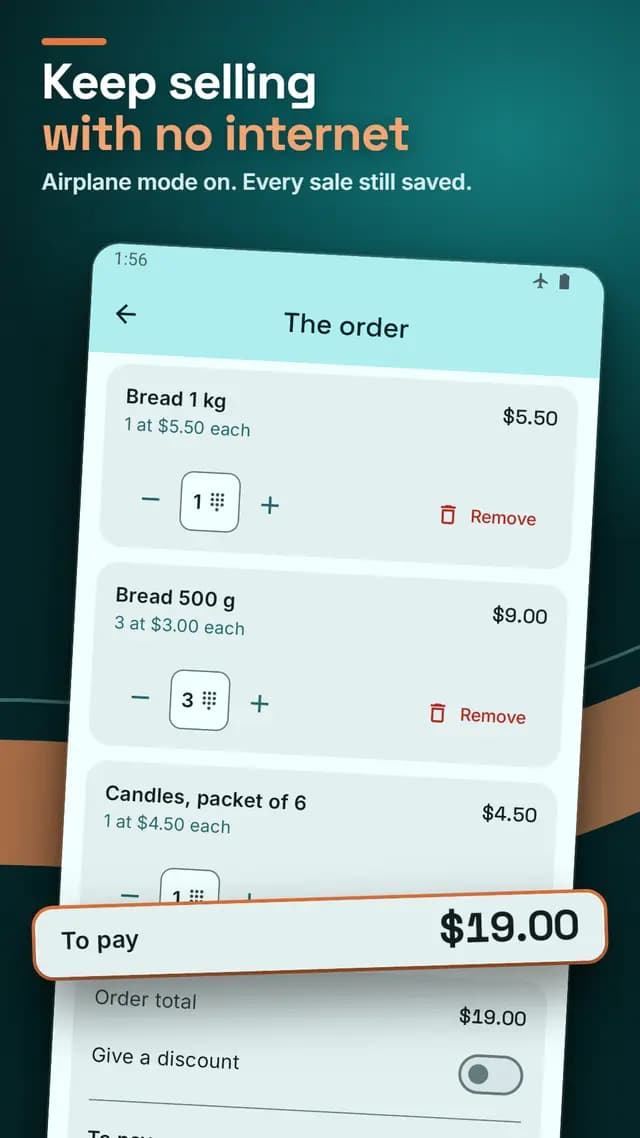
Then tap the row at the bottom to see the order. There you can give a discount or work out the change.
Tap Take cash to finish, or On credit or Part cash if they pay later. Nothing is saved before that. Then stock goes down and the sale is recorded.
Watch a sale scanned and the change worked out
Cash, credit, or part of each
A sale can be paid in cash, on credit, or part of each. On the order screen, tap On credit if they pay nothing now, or Part cash and enter what they pay now. The rest becomes credit they owe.
A credit sale counts as a sale straight away. When they pay later, it is not a second sale.
Customer names
A cash sale needs no name. A credit sale needs the customer's name. Add their phone number too, so you can find them later.
With a phone number, their next credit sale joins the same balance. Two people with the same name are kept apart.
Giving a discount
On the order screen, tap Give a discount. Enter a percentage or an amount. Sellka shows what the customer pays. A big discount asks you to confirm, in case it is a mistake.
Your sales count the amount after the discount. To charge one customer less, use a discount, not a price change.
Changing a price at the counter
On the order screen, tap a line's price to change it. The new price stays for all future sales. To charge one customer less just once, use a discount.
You can also change prices by opening Pricing in the menu. Past sales keep their old price.
Undoing a sale
For a mistake or returned goods, open the menu and tap Your sales, find the sale and tap Undo.
Everything is set to come back. Change anything the customer did not return. The money refunded and the goods returned can differ, for example with damaged goods.
Do it after the goods are back and the money is returned. It counts on the day you undo it, so reports you already shared do not change.
Sharing a sale's record
In Your sales, any sale's record can be shared as a message on WhatsApp or any app on your phone, so a customer has what they bought, the total and what they still owe.
Questions

© 2026 The NextTechTitan Team. Google Play and the Google Play logo are trademarks of Google LLC.